How Lemon works
A complete walkthrough of the app, from setting up your first kitchen to exporting records for an inspection. Written for chefs, kitchen managers, and restaurant owners.
Browse documentation
Welcome to Lemon
Lemon replaces your paper food safety diary with a simple web app. Your team records temperatures, food checks, deliveries, and cleaning checklists from any device with a browser. Every entry is stamped with the date, time, and the name of the person who recorded it. When an EHO visits, you export the whole audit trail in one tap.
This guide walks you through everything you need to know, from your first day to running multiple kitchens.
Create your account
You sign up at app.getlemon.app from any phone, tablet, or computer browser.
- Open app.getlemon.app
- Tap Create account
- Enter your email and a password
- Confirm your email when the verification message arrives
You start on a free trial that lasts 14 days. No payment information is required to begin.
Set up your first location
A location in Lemon means one site, one kitchen, one address. If you run a single restaurant you will have one location. If you run a café and a dark kitchen down the road, that is two locations.
When you create your first location, you give Lemon three things:
- A name (for example, Main kitchen, Café upstairs, or Truck 02)
- The address of the site
- A timezone, so reminders fire at the right time of day
That is it. Once it is saved, you can start adding fridges and inviting your team.
Add fridges and freezers
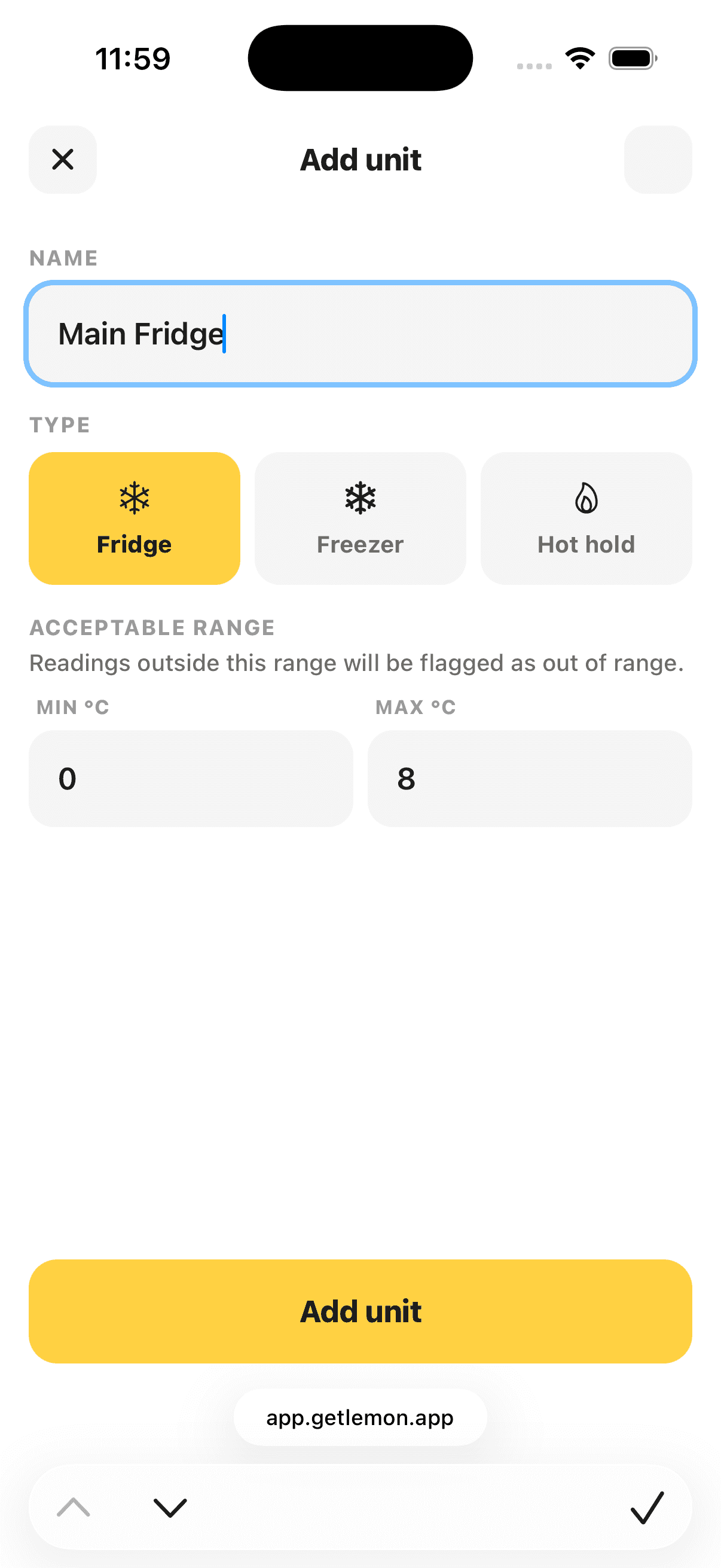
Lemon tracks every cold or hot storage unit you log temperatures for. Add one entry for each unit you check.
For each unit, you set:
- A name (for example, Walk in fridge, Dessert freezer, Bain marie)
- The type: fridge, freezer, or hot holding
- A target temperature range in degrees Celsius
Lemon uses the target range to flag readings that are out of range. Common targets:
- Fridges: 0 to 5 degrees Celsius
- Freezers: at or below minus 18 degrees Celsius
- Hot holding: above 63 degrees Celsius
Invite your team
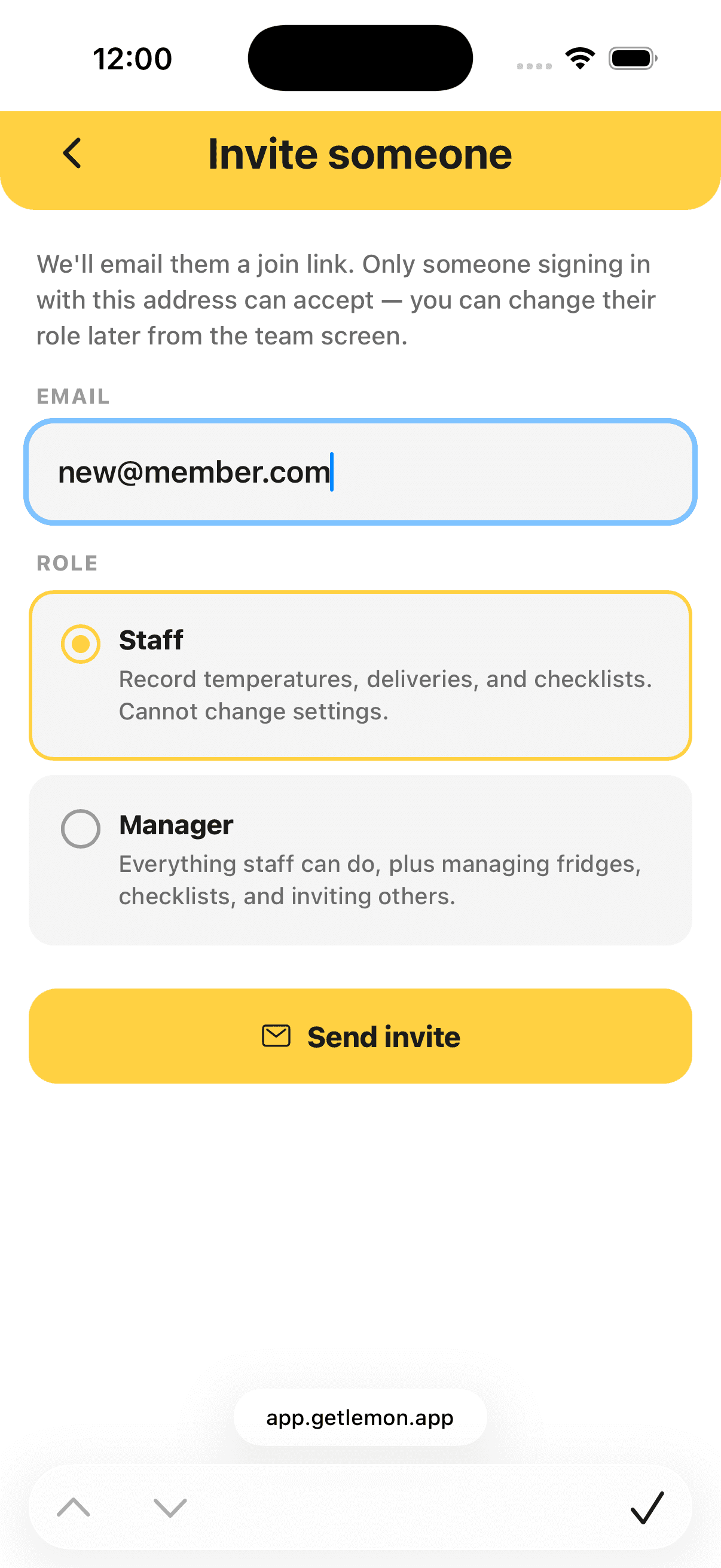
Every team member uses Lemon from their own device, phone, tablet, or computer. Their name appears on every entry they record, which is what makes the audit trail meaningful.
To invite someone:
- Open Settings, then Team
- Tap Invite
- Enter their email address and pick a role
- Lemon emails them a link
The invitee follows the link, creates their own login, and gets straight to work.
Roles and permissions
There are three roles in Lemon. Each one has different permissions.
Owner
- Full control over everything
- The only role that can create or delete a location
- The only role that can change another person's role
- Manages billing
Manager
- Configures fridges, checklists, and reminders
- Invites team members
- Records and voids logs
- Exports records
Staff
- Records logs (temperatures, food, checklists, deliveries)
- Cannot edit settings or invite others
- Cannot void or delete entries
You can change a person's role at any time from Settings → Team.
The Today screen
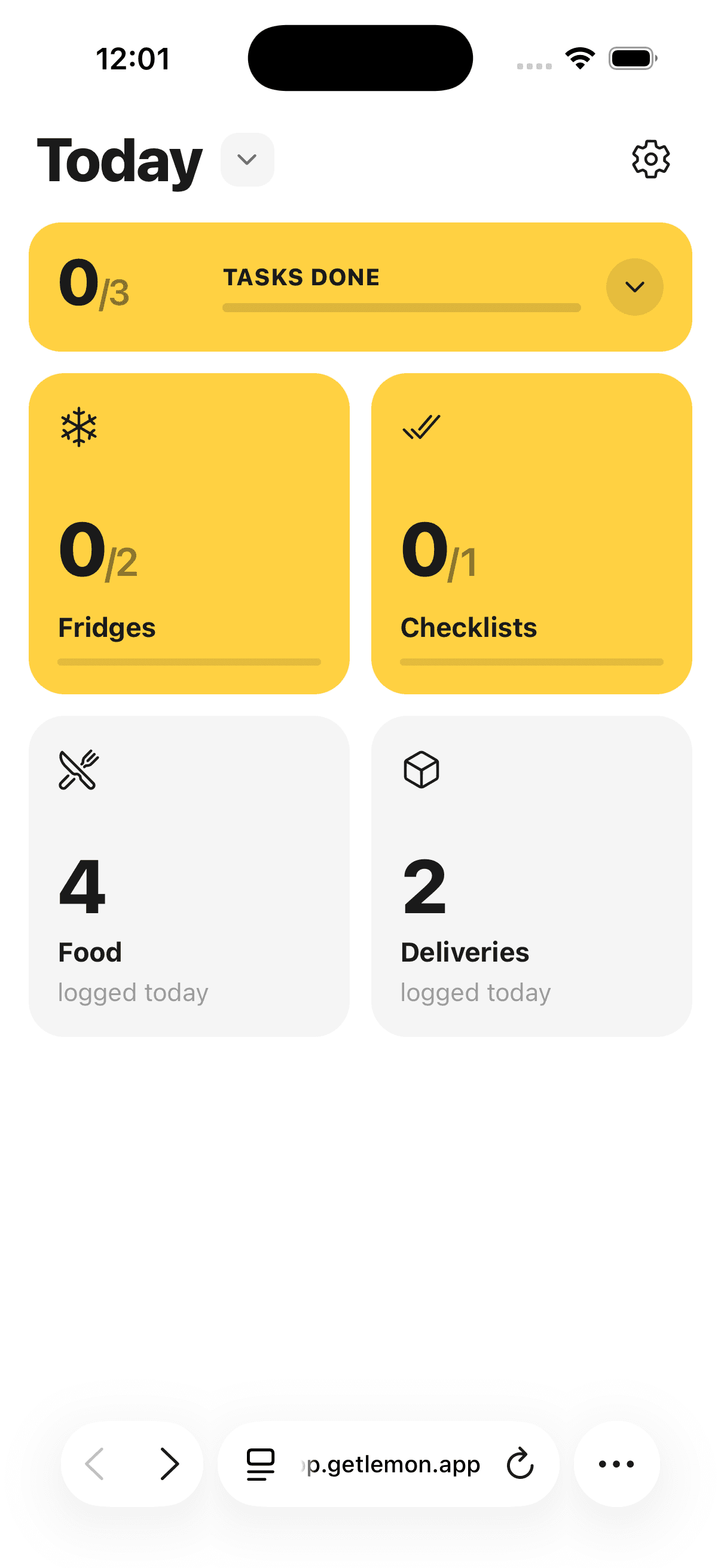
Today is the home of the app. It shows what is done and what is left to do for the current day.
You will see:
- A header with today's date
- A button to jump to the monthly calendar
- A banner if there are open issues that need attention
- A card showing how many tasks are done so far
- Four tiles: Fridges, Checklists, Food, Deliveries
Each tile shows progress. When everything is done for the day, the tile turns gray with a check mark. While there is still something to log, it stays yellow.
Record temperatures
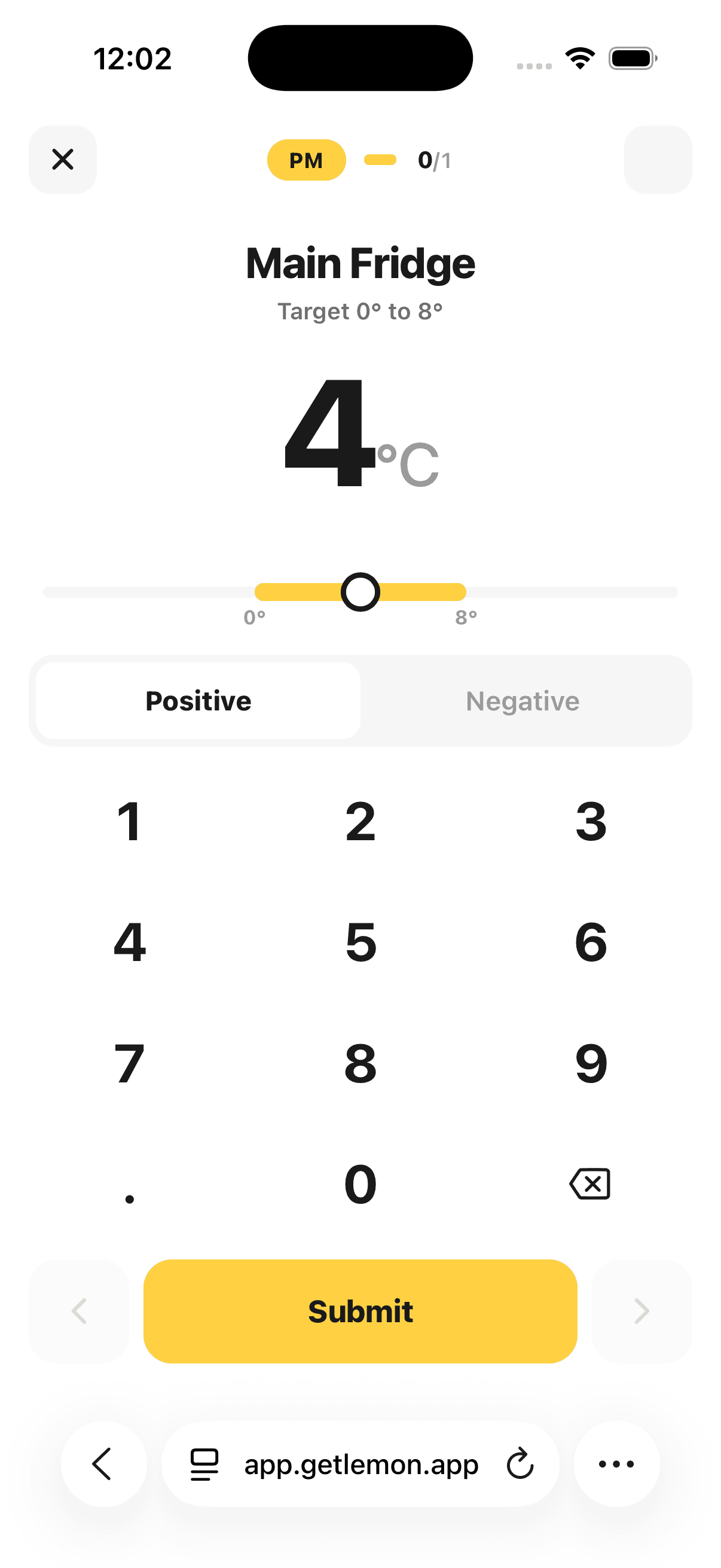
Most kitchens check fridge and freezer temperatures two times a day, in the morning and again in the evening. Lemon shows you a short round of every unit you set up.
- Tap the Fridges tile on Today
- Pick the unit you are logging
- Enter the temperature in degrees Celsius
- Tap Save
Lemon checks the reading against the unit's target range. If the reading is in range, you are done. If it is out of range, Lemon opens an issue automatically and prompts you to add a short note about what happened and what you did about it.
Food checks
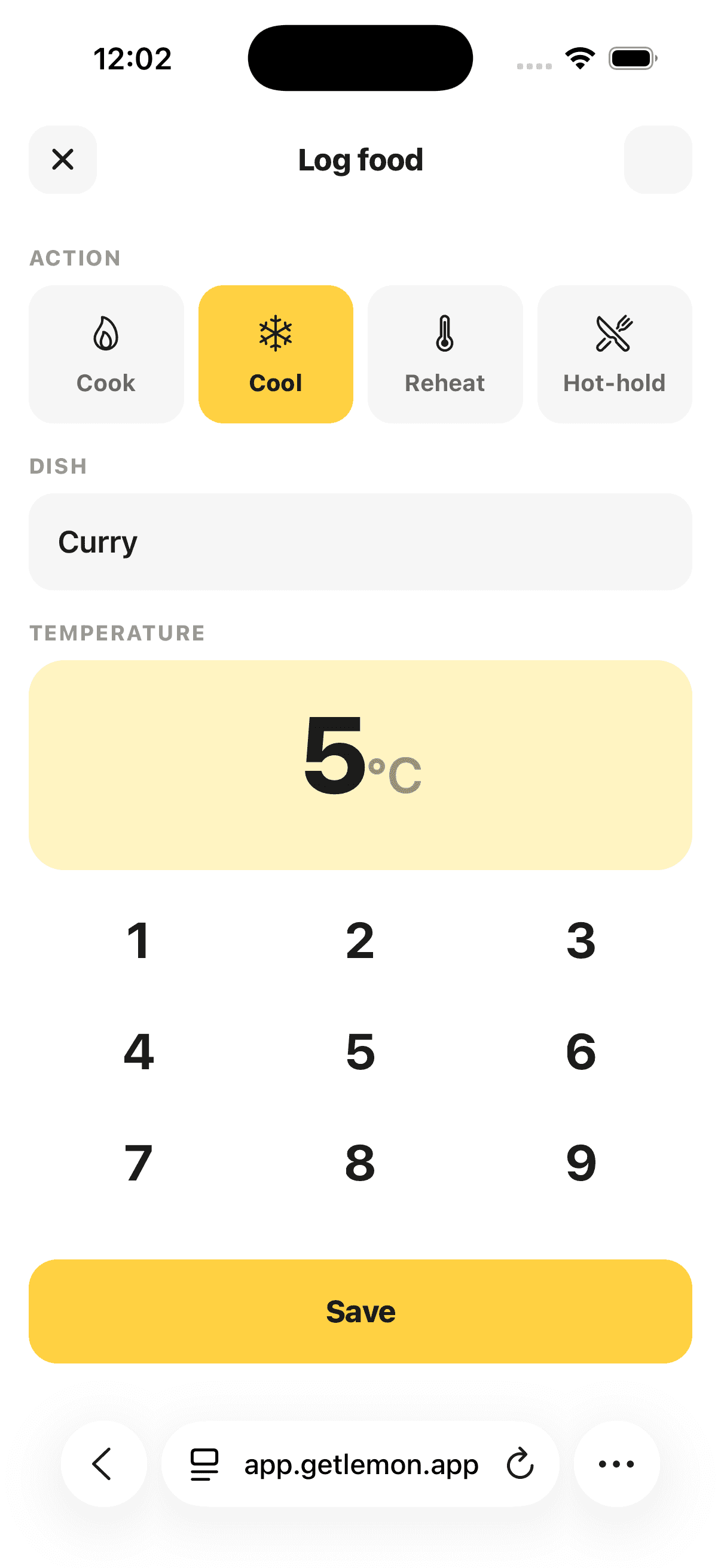
The Food tile is where you log probe checks on dishes. Use it for cooking, cooling, reheating, and hot holding.
For each check, you pick:
- The action: cook, cool, reheat, or hot hold
- The dish name
- The reading from your probe
The safe targets are built in:
- Cook: core temperature should reach 75 degrees or higher
- Cool: from 60 degrees down to 8 degrees within 90 minutes
- Reheat: 82 degrees or higher
- Hot hold: above 63 degrees
If your reading misses the target, Lemon flags it and asks you to add a note explaining the action you took.
Checklists
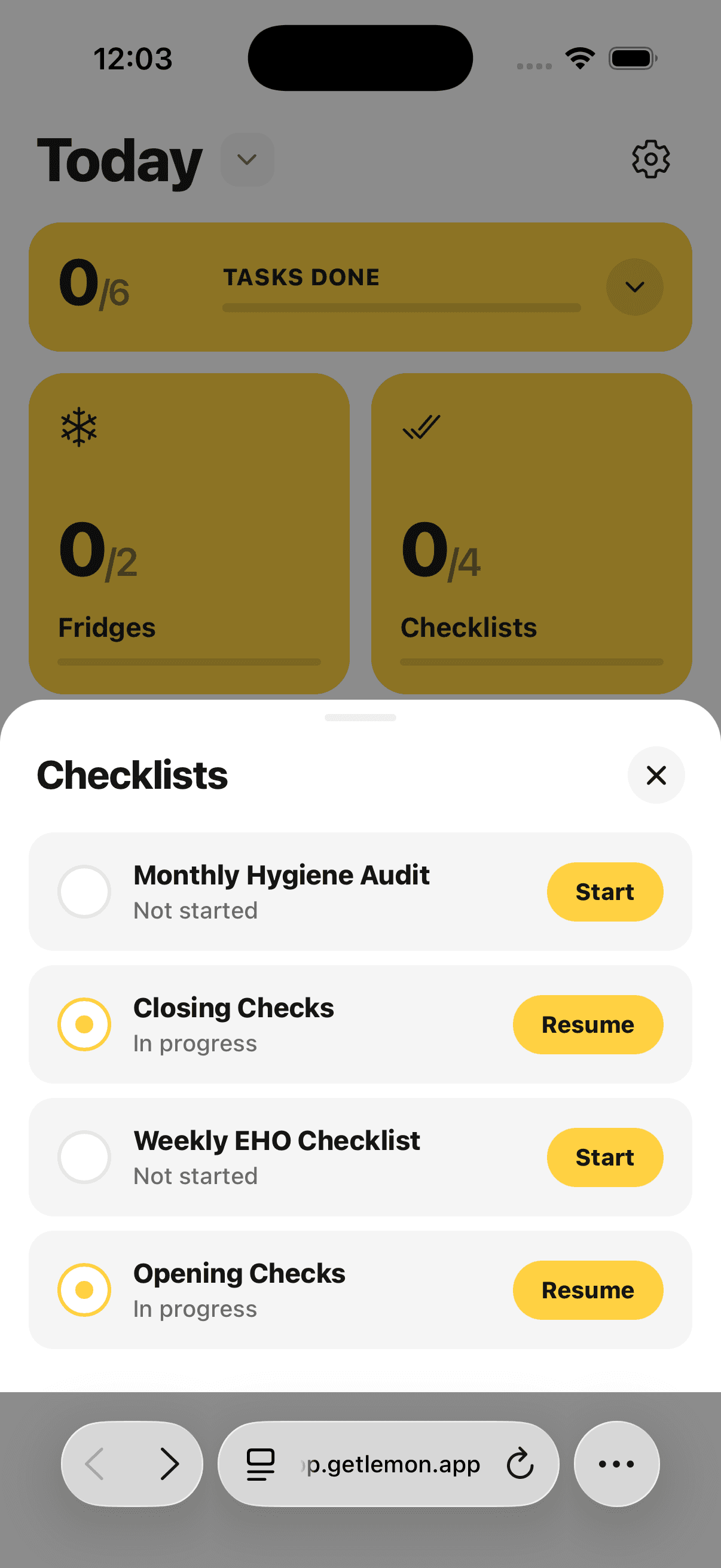
Checklists cover anything that is not a temperature or food check. Opening, closing, weekly cleaning, fryer oil, deep clean, anything you want your team to track.
Lemon comes with a weekly EHO checklist ready to use out of the box. Owners and managers can edit it, add tasks, or build new lists from scratch.
To run a checklist:
- Tap the Checklists tile on Today
- Pick the list you want to run
- Answer each task: Yes, No, or N/A
- Add a note when something needs explaining
- Tap Complete when you are done
The completed list is saved with your name and a timestamp.
Deliveries
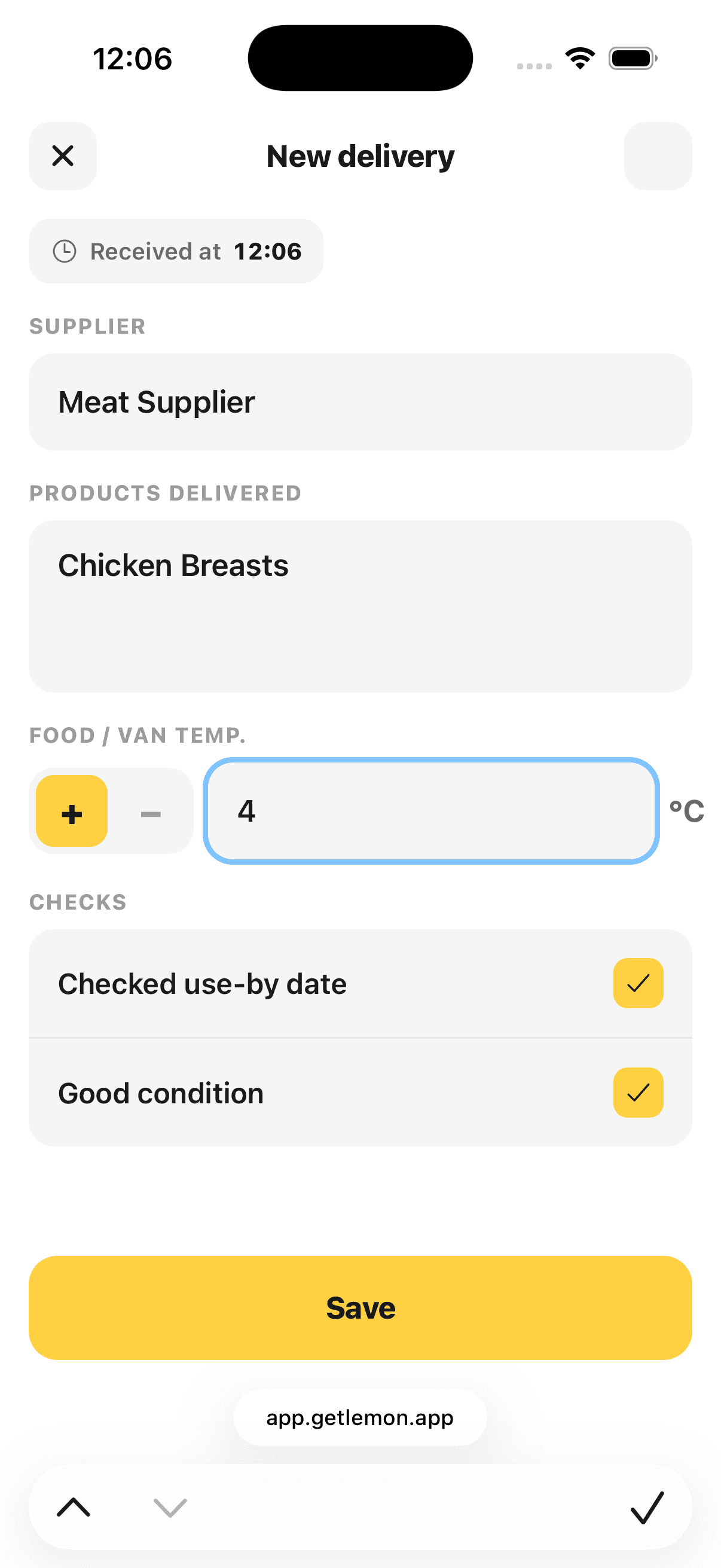
Every incoming delivery should be logged. This satisfies the traceability rule (one step up, one step down) that EHOs check.
For each delivery, record:
- The supplier
- The date
- The temperature on arrival, for chilled or frozen items
- The condition of the goods
If anything is wrong (a chilled item arrives warm, packaging is damaged, the load looks off), log it as an issue and reject the item if needed.
Issues and corrective actions
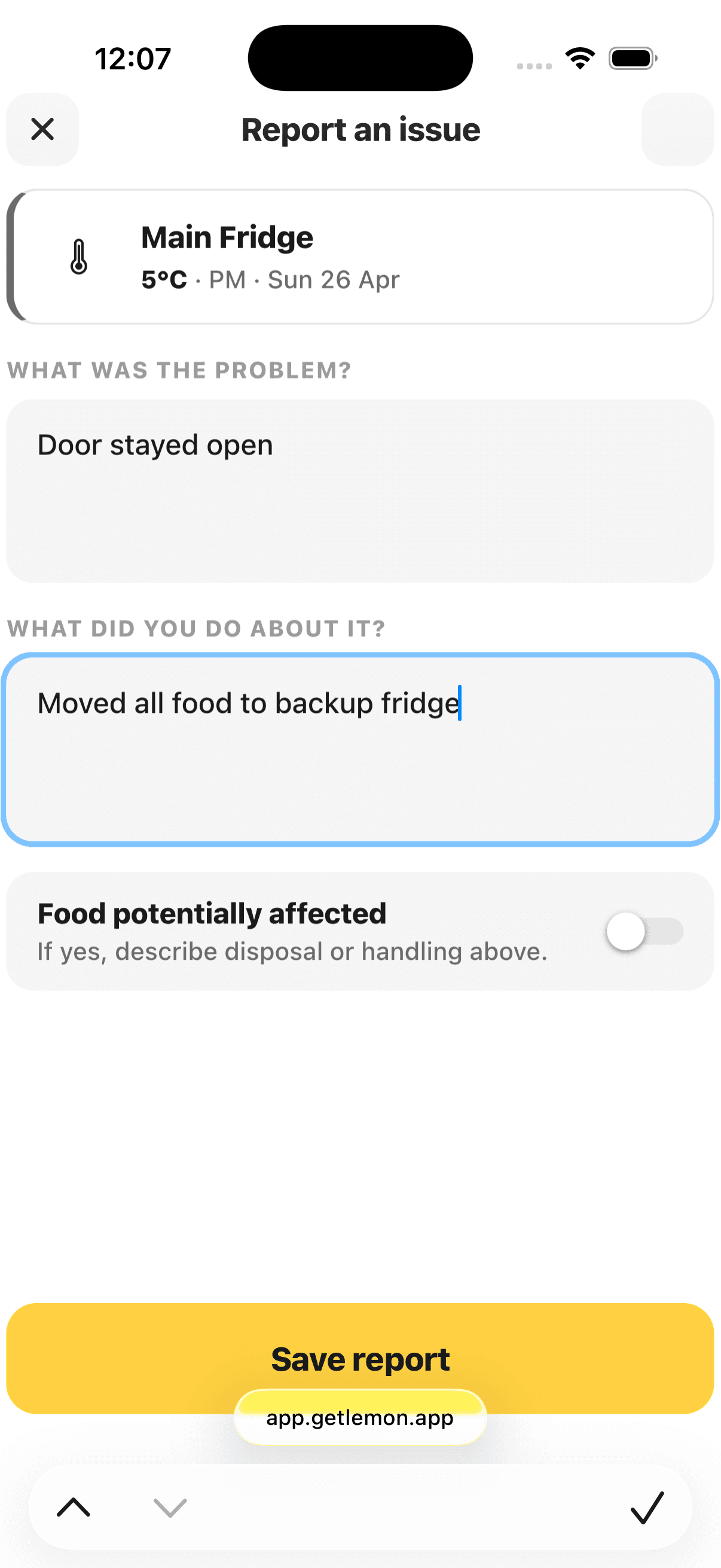
An issue is anything that went wrong: a fridge running warm, a delivery rejected, a probe reading out of range, a checklist task answered No.
Lemon opens issues automatically when a reading falls outside its target. You can also create one by hand from the issues banner on Today.
For each issue, you record:
- What went wrong
- What you did about it
- Who handled it
Issues stay open until someone resolves them. They are linked to the original reading on the audit trail, so an EHO sees the full story: problem, action, resolution.
Monthly calendar view
Tap the calendar chip on Today to open the monthly view. You will see a grid of every day in the month, color coded:
- Yellow: all checks done, no issues
- Light orange: an issue was opened but resolved
- Red: a check was missed, or an issue is still open
- Gray: a future day
A compliance ring at the side shows your overall percentage for the month. This is the screen you show an EHO when they ask how the kitchen has been running.
Add more locations
If you run multiple sites, each one is its own location. To add another:
- Open Settings, then Locations
- Tap Add location
- Set the name, address, and timezone
You can switch between locations from the location switcher at the top of the app. Each location has its own fridges, checklists, team, and records. Nothing leaks across.
Billing scales with the number of locations. Each one is the same monthly price. See Account and billing below.
Reminders and notifications
Lemon sends a push notification when a check is due. By default, you will get reminders for:
- Morning fridge temperatures
- Evening fridge temperatures
- Weekly checklist, on the day it is due
You can change the times, turn reminders on or off, or add new ones from Settings → Reminders.
Exports and inspections
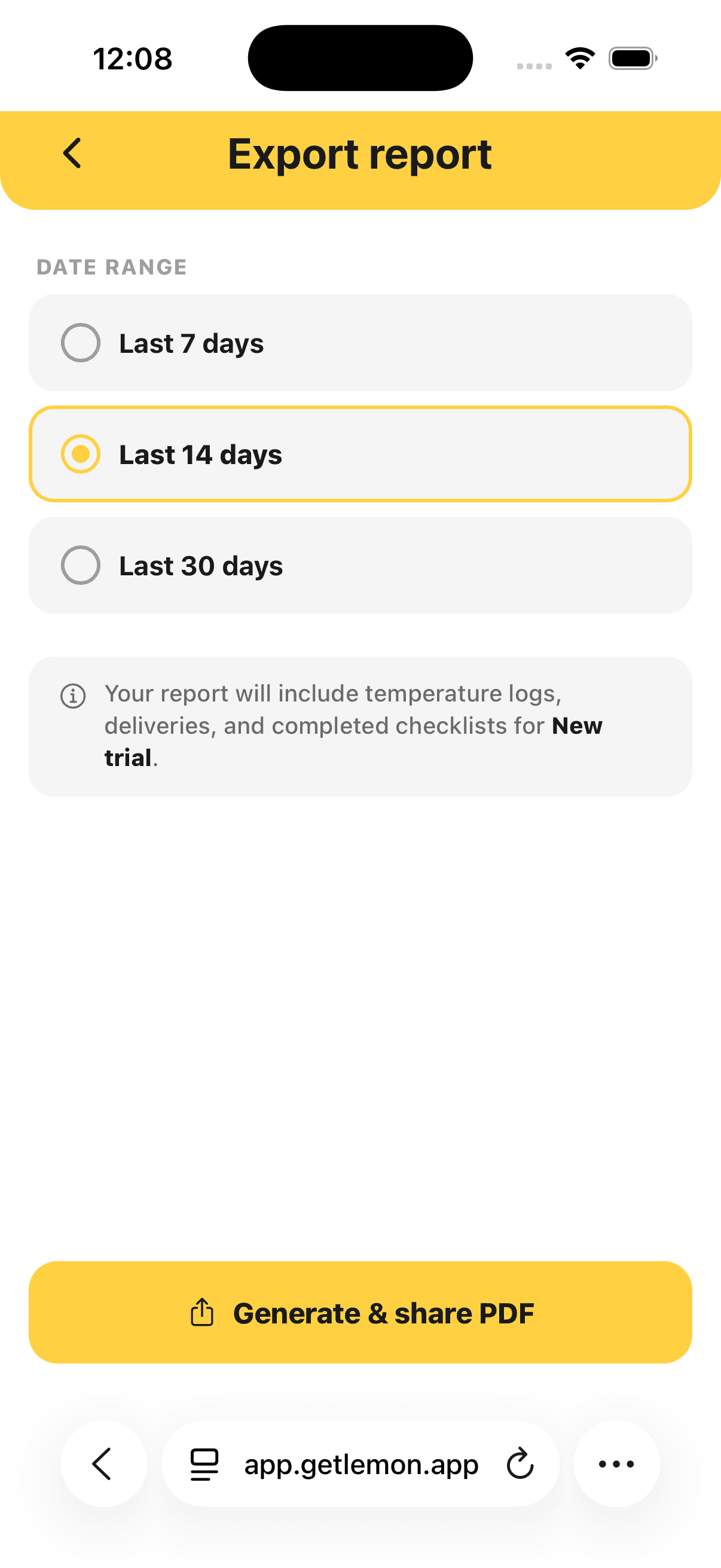
Lemon stores every log in an audit trail. When the EHO arrives, you can hand over the whole month, six months, or a year in seconds.
To export:
- Open Settings, then Export
- Pick the date range
- Tap Export
- Share it via email, AirDrop, message, or save to your files
The export is a PDF, ready to hand to an EHO or to email to your accountant.
Account and billing
One paid plan covers everything: every feature, every log type, unlimited team members, all exports.
Pricing is £19 per month, per location. You start with a free trial that lasts 14 days. No payment information is required to begin. Toward the end of the trial, Lemon prompts you to add a card.
To manage your subscription:
- Open app.getlemon.app
- Sign in
- Go to Billing
From there you can:
- See your next invoice
- Update your card
- Add more locations (the price scales automatically)
- Cancel your subscription
Privacy and your data
Your data lives in European data centers. Lemon is built and run by Lemon App OÜ in Estonia, and our customer base is mainly in the UK, so we treat GDPR as the floor.
A few specifics:
- Only the team you invite can see your records
- Staff names appear on the entries they record
- We never sell your data
- You can export everything from Settings → Export
- You can delete your account from Settings → Account → Delete account
If you cancel or delete, your records stay yours. We always let you export them first.
Read the full policy at /privacy.
Help and support
If something is not working or you have a question:
- Open Settings, then Support
- Or email us at support@getlemon.app
We are a small team based in Edinburgh and Tallinn. We answer every message ourselves.
For the most common questions (pricing, keeping records digitally, how the trial works), the FAQ on getlemon.app is a good first stop.